



 Camera Basics
 Camera Choosing
 Camera Models
 Camera Buying
 DSLR Buying
Digital Asset Management Software 2021
DAM Software
Digital Asset Management Software Reviews Completely Updated for 2021

The Digital Photography Workflow is composed of eight major steps. Read Life a Digital Image for the complete list and details. The optional sixth step is to index photographs so that they can easily be found in the future. Digital Asset Management (DAM) software are designed exactly to perform this task. They transcends media types which include images, videos, documents and other digital assets. For the scope of this article, we focus on software that have specific tools to manage images.
Originally, DAM Software strictly managed digital files and image processing was performed by dedicated programs such as Adobe Photoshop, the most famous imaging software. As image libraries grew, Adobe introduced a viewer called Adobe Bridge that incorporated some DAM features. The true revolution came when they introduced Adobe Lightroom, now officially called Adobe Photoshop Lightroom Classic. This software, referred simply as Lightroom from here on, combines digital asset management and basic image processing with non-destructive editing. Non-Destructive Editing existed in video applications for some time but this was the first imaging processing software to work this way.
Lightroom set the benchmark for photography workflow software which is why every DAM software reviewed here is compared against it. For years, Lightroom faced zero competition due to its affordability. Eventually, Adobe pulled Lightroom into its Creative Cloud subscription service, causing its cost to sky-rocket while tying users into a perpetual subscription. Crucially, its non-destructive nature implies that the final version of images only exist within Lightroom, making it highly improbable anyone would terminate their subscription.
Several Photography Workflow software recently launched while some DAM Software acquired image processing features and certain Image Processing software introduced DAM features. There are levels of DAM Software, ranging from free to expensive. Core features are common but each software provides its own distinct feature-set, reflecting its origin and evolution. This article reviews DAM software aimed at amateur and independent professional photographers.
Digital Asset Management Software contenders are:
- Adobe Lightroom Classic 10.1 - Windows & Mac OS
- Corel AfterShot Pro 3 (Formerly Bibble Pro) - Windows, Mac OS & Linux
- Phase One Capture One 20 - Windows & Mac OS
- IDimager Photo Supreme 5 - Windows & Mac OS
- Photools IMatch 2020 - Windows Only
- DxO PhotoLab 4 - Windows & Mac OS
- ACDSee Photo Studio Ultimate 2021 - Windows Only
Among this list, IDImager and Photo Supreme are primarily DAM software with extensive support for cataloging images but limited processing capabilities. All others are full-fledged image possessing applications meant to cover a significant part of the digital photography workflow.
Software company Camera Bits makes a digital photography workflow software called Photo Mechanic Plus. After several attempts and reinstalling it twice on a new system image, it never managed to index any images. It worked as a standalone photo editor but that is out-of-scope for this review.
DAM Tasks
Digital Asset Management is essentially indexing of digital files with information to facilitate searching for assets that match certain criteria. Computers store files on a filesystem that gives each file a name, path and stores basic information about such as its size and last modification time. Within image files, there is more specific information called metadata. There are several types of metadata, including EXIF and IPTC. The former is initially embedded into images upon creation by the camera and possibly modified later. The latter is written by specialized software for the purpose of cataloging images. Finally there is XMP which is an XML file that stores metadata about an image.
All DAM Software read available metadata when they encounter images. This is frequently done during an Import step that gathers data prior to working with those images. Some software allow images to be opened without being imported first and progressively add their metadata. This limits there ability to index images which have not been opened yet, so most software have the explicit Import action.
Metadata built into images is fairly limited and so extra information is frequently added by users. The most generic such information are keywords. Keywords can be anything: Locations, People, Objects, Concepts, etc. Once images are associated with keywords, those can be later used to find matching images. Categorize are similar to keywords except that they can be organized into a a hierarchy. This means that one category belongs to another category, which may in turn belong to yet another.
Categories save work compared to keywords but one can be configured to emulate the other. A category which nor belongs to nor owns another is exactly like a keyword. Several keywords can be used to emulate categories. Instead of adding the Paris category which belongs to France which belongs to Europe, one would add all three as keywords. The result would make it possible to search using any location granularity.


The whole purpose of cataloging is to efficiently retrieve files at a later date without knowing where they are. This is where the efficiency, completeness and expressiveness of DAM Software really makes a difference. Queries should be easy to create and matching image are expected to appear quickly. Having ways to refine results and automatic frequent searches provide greater efficiency.
An important aspect of searching is that one must be able to search for images which are not present while the search is being performed. Due to storage limitations, images can be off-loaded onto optical media such as DVDs or even external hard disk drives. For this to work, DAM software store locally metadata and thumbnails of off-line images. This allows one to see which images match a search without having access to the actual file.
Selection of Keepers
Most DAM software provide flexible tools to compare images. This include side-by-side comparison with synchronous zooming which extremely useful when comparing frames captured in burst to determine which ones have critical focus and an ideal expression from the subject.
When using Digital Asset Management Software to download images it could be tempting to use the same software for selecting keepers. The issue causes a catch-22 situation since file organization is determined by the set of keepers and DAM software are dependent on file organization. There are two ways around this:
- Reorganize: Import into a triage folder, select the keepers from there and then use the software's folder reorganization features.
- Reimport: Import into an incubation catalog in which you select the keepers by tagging them with a special flag or metadata. Reimport the keepers into the final catalog when done. This may require an intermediate export step with some software.
Generally reorganization within DAM software is much slower than through the operating system because DAM software has to modify its associated data to keep track of location changes and properly find images later.
 Next
Next Software Reviews
Please Support Neocamera
All information on Neocamera is provided free of charge yet running this website is a huge endeavor. Purchases made via affiliate links found throughout the site help keep it running and up-to-date. There is no additional cost to you, so please consider buying via these links to our affilates:




Thank you for your support!


File Organization
All Digital Asset Management Software manage digital assets but do not organize them. The distinction is that DAM software are there to catalog digital assets where they are stored. On the other hand, organizing assets is choosing where to store each asset, which is a user-driven task even though some software can copy or move digital assets into their intended location.
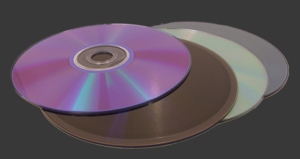
It is crucial to plan how files are organized across disks and within them. A folder hierarchy is the only organization visible to the operating system and to backup software. Moving files offline into optical disks or external drives is much easier with a good file organization. To allow backups and off-loading to optical disks, make sure top-level folders do not exceed the maximum size for your choice of optical media, for example 4.5GB to use DVDs and 24GB to use Blu-Ray.
With the huge size of videos, it is much less practical to use optical disks for off-site storage, so now larger top-level folders can be matched with available external disks drives. Even high resolution images today easily full-up a DVD but there is nothing that compared to the longevity and durability of optical media.
Benchmarking
Benchmarking interactive software is truly a complex endeavor. Speed is absolutely crucial to make software usable but with asynchronous processing, many tasks happen simultaneously. Users notice lag when they are waiting for something before they can take the next action, even though unfinished tasks could be progressing in the background.
Key tasks that determine the performance of DAM software are:
- Import: The time between selecting new images and them being available in the software.
- Image Preview: Showing a view of image-content of any quality.
- Image View: Viewing an image scaled to the application window.
- Full-Resolution Zoom: Viewing an image such that each pixel in the image is shown as one pixel on-screen.
- Image Switching: Switching the view between two images. This speed is crucial when comparing similar pictures.
- Tag Application: Time between tagging an image and being able to perform another action on the image.
- Image Search: Speed of searching for images by tag, metadata and attribute.
To provide even benchmarking of all the DAM Software reviewed here, Neocamera imported 25GB of identical images into each program using a clean HDD image restored to the exact same point on a state-of-the-art SATA III SSD with 520 MB/s read and 400 MB/s write speed. Although much faster NVMe are available, their price and size are prohibitive to use as primary photo storage.
Updates
2026.09.08

The Wild Magic of Iceland Book Review
Review of The Wild Magic of Iceland by Norris Niman. A photographic journey through seasons.
2026.07.31

ZY Optics Pittura 30mm F/2.4 Medium-Format Lens Review
The ZY Optics Pittura 30mm F/2.4 is a manual lens designed exclusively for Medium-Format Digital Cameras. This fast prime lens captures a wide field-of-view, equivalent to a 24mm on Full-Frame. It is am affordable alternative to first-part GFX and XCD lenses.
2026.07.26

Fujifilm GFX100S II Review
Express review of the Fujifilm GFX100S II. This 102 MP Medium-Format Mirrorless Digital Camera packs an 5-Axis 8-Stop IBIS and a 5.8 MP 0.5" EVF showing 100% coverage at an extra-large 0.84X magnification. It is a more compact version of the flagship GFX100 II. This review covers exactly how these camera compare.
2026.07.14

Sony Alpha A7R VI Review
Extended In-Depth Review of the Sony Alpha A7R VI. This flagship Full-Frame Mirrorless Digital Camera combines ultra-high 67 MP resolution with very fast 30 FPS continuous shooting. It packs a 5-axis 8½-stop IBIS mechanism and an ultra-sensitive 759-Point Phase-Detect AF system. Its incredibly sharp 9.4 MP 0.64" EVF has a huge 0.9X magnification, 100% coverage, 10-bit HDR and 100% DCI-P3 color-space. Captures 8K video at 30 FPS or 4K video at 120 FPS.
2026.05.21

Laowa 4.5-10mm F/2.8 Fisheye Zoom Lens Review
In-depth review of the Venus Optics Laowa 4.5-10mm F/2.8 Fisheye Zoom Lens. This lens zooms from a circular to rectangular fisheye with an 180° viewing angle. This review analyses its optical quality, construction and handling.
2026.04.13

Laowa 17mm F/4 Zero-D Shift Review
In-Depth review of the Venus Optics Laowa 17mm F/4 Zero-D Shift Lens. This ultra-wide Shift lens is specifically designed for Mirrorless Digital Cameras and is available in 4 Full-Frame mounts plus 2 Medium-Format ones.
2025.11.13

Best Gifts for Photographers in 2025 by Budget
The annual Neocamera Photography Gift Guide updated to 2025. Find great gifts for photographers with any price budget.
2025.07.07

Stellar Photo Recovery Review
Review of Stellar Photo Recovery V12. This Windows and MacOS software can recover photos and videos in a huge number of formats from memory cards, USB drives, SSDs and HHDs.
2025.05.14

Huion Kamvas 13 Gen 3 Review
In-Depth review of the Huion Kamvas 13 Gen 3 Pen Display Tablet for photographers and graphic artists.
2025.01.18

Fujifilm GFX 2025 Lens Roundup
Lens Review roundup of Fujifilm GFX Medium-Format lenses. Quality, performance and handling of the GF20-35mm F/4R WR, GF30mm F/3.5 Tilt-Shift and the GF55mm F/1.7.
2024.11.18

Best 2024 Photography Gifts for Every Budget
Great gifts for photographers and photo enthusiasts selected for every budget among the best products of 2024.
2024.08.07

Eye Protection Tips for Professional Photographers
The four main considerations for professional photographers regarding eyewear.
2026.09.08
2026.07.31
2026.07.26
2026.07.14
2026.05.21
2026.04.13
2025.11.13
2025.07.07
2025.05.14
2025.01.18
2024.11.18
2024.08.07
Camera Bag


Your camera bag is empty. To add a camera or lens click on the star next to its name.
Your camera bag is empty.
Add cameras or lenses by clicking on the star next to their name.
NEWS
2026.09.16

Canon Increments R8 to Mark II
Digital Camera
2026.09.15

Sony Launches Super-Telephoto GMaster Lenses
Lens
2026.09.09
OM Systems Relaunches PEN
Digital Camera
2026.09.08
Sony Reveals First Fisheye Zoom Lens
Lens
2026.09.04
Fujifilm Launches New 400mm Prime Lens
Lens
2026.08.10

Peak Design Launches City Line Bags
Bag
2026.08.04
Sony Launches Light Super-Telephoto Full-Frame Zoom Lens
Lens
2026.07.31
Venus Optics Creates Two Parfocal Ultra-Macro Lens
Lens
2026.07.31
ZY Optics Pittura 30mm F/2.4 Medium-Format Lens Launch and Review
Lens ○ Review
2026.07.26
Fujifilm GFX100S II Review Published
Digital Camera ○ Review
2026.07.14
Sony Alpha A7R VI Review Published
Digital Camera
2026.07.09
Sony Unveils 5th Generation RX10
Digital Camera

