



 Camera Basics
 Camera Choosing
 Camera Models
 Camera Buying
 DSLR Buying
Digital Photography Workflow
The Life of a Digital Image
 A digital photography workflow describes everything that is done to an image or raw data from the moment it leaves a digital camera onwards. For some images, the workflow may end, but for others it may be eternal. All digital workflow are planned for a purpose. As the purpose can differ, so can the workflow. All engineers know of the power of consensus and that any plan is better than no plan. A digital photography workflow is a life-plan for digital images.
This article provides an overview of how all the pieces of a digital photography workflow fit and work together. It is the first of a series of articles to be published here on Neocamera that will cover various workflow steps in much greater detail. The value of this overview is that it provides the information needed to produce a digital photography workflow plan. Without knowing the purpose of each step, it would be difficult to make decisions regarding workflow components.
Birth or Incubation
All digital cameras can give birth to an image shortly after the shutter is released, storing it on a flash memory card or internal memory. Today, images are stored using formats like JPEG and TIFF. Regardless of the format, what the camera produces is already a fully-formed image.
All ILCsInterchangeable Lens Cameras which include DSLRs and SLDs. and some fixed lens models can instead generate RAW data. This RAW data, which could be stored in a proprietary format or Adobe's DNG format, serves to produce a digital image after a period of incubation. This period ends on a computer or in the camera, for the few models that have built-in conversion capabilities.
A third option often exists where a camera produces an image and RAW data. In this case, both files can follow the same workflow or a different one.
The first step of a digital photography workflow is to decide if the camera should produce images, RAW data or both. There has already been endless debates on the merits of each option. The main point is that you make a firm choice based on a school of thought:
- Get it right the first time, spend more time taking pictures and less time processing... and shoot JPEG
- Get the most data out of the camera and work at getting a specific look out of each image... and shoot RAW
- Keep the most options open in case you did not get it right... and shoot RAW+JPEG
Choose one. Regardless of which format is chosen for a workflow, files have to leave the camera, one way or another. Most beginners use a supplied USB cable. Another option is to use a dedicated memory card reader, via USB, ExpressCard or PCMCIA. This is usually much faster and does not waste the camera's battery. A third option is to use a WiFi transmitter. One can be built into the camera, built into the memory card or added on. Whichever device is chosen has no effect on your workflow, there just needs to be a way for images and RAW data to move on.
Infancy - Offloading Images
Early in its life, an image or RAW data needs to find its place. In this step, files are taken from the camera and moved into a location on a hard-disk, usually an internal one for efficient access during the next few steps.
In its most basic version, this offloading step is performed by software built into a computer operating system. Some third party software programs can do that too, usually adding very basic functionality on top of what the operating system does. The goal is simply to move files to a place where they can be inspected closely and to empty the memory card to use it again later.
More sophisticated versions of this step can be performed by specialized software. The most common feature offered is to rename files as they are moved. The renaming usually involves some logic like using the EXIF date so that filenames sort in the same order as the shooting date.
The offloading strategy often depends on the remainder of the workflow. In some cases, unique filenames are required, so using the date or a global sequential counter ensures that. Using the date as filename is also a trick to easily sort files by shooting date even after being manipulated.
Youth - Selecting Keepers
Rarely is it the case that all images are fit for keeping and so images need to be edited before they move on. Here edited is used in the videography sense, it is not a manipulation of the image but simply the choosing of which images make the cut and which ones do not.
For RAW and DNG files, this is the time to make them grow into actual images. This process is called RAW conversion and is done using specialized software. In order for these files to become anything other than the usual JPEG that the camera would have produced in its place or along with it, a photographer must adjust parameters for RAW files either individually or in batches. This is where the cost of shooting RAW occurs and where one takes advantage of the flexibility it offers.
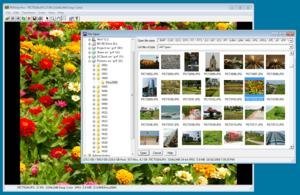 Unless shooting RAW+JPEG, it is important to convert here because only an image can make it through the selection process, as we cannot visually see RAW data. Despite the appearance of RAW thumbnails by image viewers, these are only previews and are rarely representative of what a RAW file will look like when converted into an image.
Those shooting JPEG+RAW can let the pair go through the editing process as one, on the basis of what the JPEG looks like. In this case, the RAW is referred to as a sidecar to the JPEG.
Many ways exist to perform the editing process. The basics are to go through all images twice. The first pass removes images with technical problemsOut of focus, blur, ghosts, over-exposed, under-exposed, incorrect settings, etc, those that are obviously wrongSubject chopped, interior of camera bag, etc and to get to see the whole set. The second pass removes inferior images by this time considering the whole set. The way this can be done with PMView Pro was covered at length on Selecting Keepers already but other software exit to do that.
As part of this process, images can be kept in place, as the non-keepers get deleted anyway, or moved to a new location for quick access.
Growing Up - Transformations
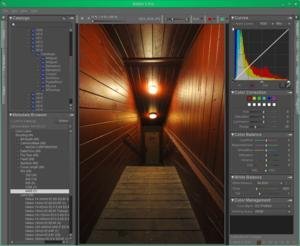 Those so inclined will choose to manipulate their images. An image can be manipulated directly or another image can be produced, in which case one image may end up as many images going through the next steps.
Certain types of photography such as panoramas and HDR require compositing multiple images together. In this case, many images may become one for t he next steps.
Extensive courses, books and online resources cover the use of photo manipulation software. As usual, the right one depends on the task being performed. For basic transformations, such as cropping, most free software are good enough. Extremely powerful image software can transform a photograph into a different form of art.
Adulthood - Cataloging
Cataloging is the process of associating data with images so that they can be found later based on criteria beyond what a file-system keeps. Cataloging is entirely optional. Without cataloging one can still find images based on file attributes such as its location on disk, filename and date. The date can be misleading as it is often the last modification date which is recorded by the file-system, not the capture date.
Only once keepers are selected and stored in their destined location can they be cataloged properly. There are plenty of image cataloging software, several of which can catalog a number of other digital file types such as video and audio. A cataloging software lets users associate tags, sometimes called keywords or categories, to images. This can be done one image at a time or in a group.
There are two main approaches to cataloging, one is to put all associated data into a database and the other is to place it within image files. A few programs offer a hybrid approach. Since images initially contain embedded data like EXIF, IPTC or XMP, all software which use a database copy some of that data into the database too, speeding up searches.
The most important advantages of using a database-driven approach are:
- Images remain untouched and intact. This is the most secure and allows verification that an image has been produced in-camera for admissibility where authenticity is required.
- Efficiency. All the data being stored together lets programs operate more efficiently.
- Flexibility. Software can store more varied and extensive data in their own databases.
- Off-line indexing. One can search for images that are not physically stored on the computer, such as ones located on removable media.
- Read-only indexing. One can index and associate data with files on read-only disks such as DVDs and Blu-Rays.
On the other hand, storing data within images themselves has two advantages:
- Inseparable. Once data is within a file, it stays with the file while it is moved or copied.
- Accessible. The format of data within image files other than RAW files is standard. This gives it the most chances of being understood.
Midlife - Backup
After all the work of offloading, editing and cataloging, it is time to protect images using a well-thought backup strategy. A backup strategy protects images from accidental loss due to a variety of causes.
No backup strategy can cover all possibilities but a good one will reduce the probability of loss to nearly zero. In general, a strategy requires effort in proportion to the security it provides to backups. Effort can be replaced with money by contracting a company which specializes in backups.

Common options for backups are external storage devices, optical disks, tapes and cloud-storage. Physical media can also be local or remote. One way to improve the reliability of backups is to use multiple means.
One variant of backups is to off-line something, which means to remove it from immediately accessible storage. This is like deleting an original file and only having backups. Often, this is done to free local storage by moving least used images.
Retirement - Using Images
Most images serve a purpose. To realize it, an image must be used in some way: printed, viewed, shared or sold. This is where having a cataloging system greatly helps. For small collections, a well-planned directory structure may do but in most cases it will not be enough.
Images might be meant to be eternal, to be passed from a generation to the next or to be archived into history. A digital photography workflow must be designed with enough life-span.
Certain images may be used to produce derivative works as new images processed from old ones or composed into other works of art. In such cases, newly reincarnated images restart their life-cycle at the cataloging stage.

 Photography Articles
Please Support Neocamera
All information on Neocamera is provided free of charge yet running this website is a huge endeavor. Purchases made via affiliate links found throughout the site help keep it running and up-to-date. There is no additional cost to you, so please consider buying via these links to our affilates:




Thank you for your support!


Overpopulation
Lemmings are known for dealing with overpopulation on their own. Unfortunately, digital images do not have that capability. The second step in a photography workflow should be swift and merciless deletion of poor, useless or repetitive images.
This can be done directly on-camera to avoid changing cards often or later on the computer. This is not the only point where images can get deleted but deleting early in the workflow does reduce the weight of the entire process.
Delete Is Your Friend
Deletion is a powerful way to improve a portfolio, a gallery or a collection of images, giving each image more impact. When done well, deletion can improve the average quality of images tremendously.
There are always those that say storage is cheap and they are right, it is. What is not cheap is the workflow, in terms of time and processing mostly. Each image adds time to a digital photography workflow, so choose wisely which ones deserve to take up your time.
When sharing images, the consistent deletion of images improves viewer's experience by using less of their time and keeping a flow of better images in front of them.
Workflow Steps
Here is a quick recap of the steps of a complete digital photography workflow:
- Format choice: Image (JPEG / TIFF) or raw data (RAW / DNG).
- Early deletion: Removal of images with obvious problems.
- Offloading: From a camera to a computer.
- Selection of keepers: Second stage of deletion, also time to convert raw data into images.
- Optionally manipulate: Turn photographs into derivative images.
- Optionally catalog: Associate data with images to facilitate searching.
- Backup: Copy images to reduce the possibility of accidental loss.
- Use: Print, view, share or sell images.
Updates
2025.11.13

Best Gifts for Photographers in 2025 by Budget
The annual Neocamera Photography Gift Guide updated to 2025. Find great gifts for photographers with any price budget.
2025.07.07

Stellar Photo Recovery Review
Review of Stellar Photo Recovery V12. This Windows and MacOS software can recover photos and videos in a huge number of formats from memory cards, USB drives, SSDs and HHDs.
2025.05.14

Huion Kamvas 13 Gen 3 Review
In-Depth review of the Huion Kamvas 13 Gen 3 Pen Display Tablet for photographers and graphic artists.
2025.01.18

Fujifilm GFX 2025 Lens Roundup
Lens Review roundup of Fujifilm GFX Medium-Format lenses. Quality, performance and handling of the GF20-35mm F/4R WR, GF30mm F/3.5 Tilt-Shift and the GF55mm F/1.7.
2024.11.18

Best 2024 Photography Gifts for Every Budget
Great gifts for photographers and photo enthusiasts selected for every budget among the best products of 2024.
2024.08.07

Eye Protection Tips for Professional Photographers
The four main considerations for professional photographers regarding eyewear.
2024.07.14

Fujifilm X100VI Review
Flagship fixed-lens compact digital camera with a 40 MP sensor and Image-Stabilization, a first for the series. Retro design featuring dual control-dials, plus direct ISO, Shutter-Speed and EC dials. Its hybrid viewfinder can switch between EVF and OVF mode.
2024.05.09

Fujifilm GFX100 II Review
Flagship 102 Megapixels Medium-Format Mirrorless Digital Camera with 8-Stop 5-Axis IBIS, 8 FPS Drive, 8K Video and 400 MP Super-Resolution capture in a weatherproof and freezeproof body with dual control-dials and dual memory-card slots.
2024.04.03

Fujifilm X-T5 Review
Newest Fujifilm flagship boasting a 40 MP APS-C sensor, 5-axis IBIS with 7-stop efficiency, 15 FPS continuous drive, 6.2K Video capture, dual control-dials and dual SDXC UHS-II slots in a sturdy weatherproof and freezeproof body.
2023.11.20

Best Digital Cameras of 2023
Find out which are the Best Digital Cameras of 2023. All the new Mirrorless Digital Cameras from entry-level to high-end professional.
2023.07.10

Fujifilm X-H2 Review
40 Megapixels APS-C Hybrid Mirrorless Digital Camera with 7-stop IBIS. Fastest shutter ever and 8K video capture. Large builtin EVF with 0.8X magnification and 5.8 MP, plus an Eye-Start Sensor. Packed with features and large number of controls in a weatherproof and freezeproof body.
2023.05.07

Sony FE 20-70mm F/4G Review
Review of the unique Sony FE 20-70mm F/4G lens. The optical zoom of this lens spans ultra-wide-angle and medium focal-length coverage, making it one of the most versatile Full-Frame lenses on the market.
2025.11.13
2025.07.07
2025.05.14
2025.01.18
2024.11.18
2024.08.07
2024.07.14
2024.05.09
2024.04.03
2023.11.20
2023.07.10
2023.05.07
Camera Bag


Your camera bag is empty. To add a camera or lens click on the star next to its name.
Your camera bag is empty.
Add cameras or lenses by clicking on the star next to their name.
NEWS
2025.12.02

Sony Upgrades Alpha 7 to 5th Generation
Digital Camera ○ Lens
2025.11.29

Venus Optics Releases New Zero-D Tilt-Shift Macro Lens
Lens
2025.11.23
Best Digital Cameras of 2025
Digital Camera
2025.11.14

Photography Gift Guide 2025 Edition
2025.11.06
Canon Announces Third-Generation R6 Mirrorless
Digital Camera ○ Lens
2025.10.23
Fujifilm Launches X-T30 III Plus New Wide Zoom
Digital Camera ○ Lens
2025.10.21
Peak Design Unveils Field Plate and Form Straps
2025.10.16
Nikon Unveils Z-Mount DX Lens Duo
Lens
2025.10.16
Venus Optics Unveils Fast Telephoto Prime Lens
Lens
2025.10.01

Think Tank Photo FocusPoint RollTop Backpacks
Bag
2025.09.30
Sony Produces Super Macro GMaster Lens
Lens
2025.09.17
Venus Optics Created First Telephoto Ultra-Macro Lens
Lens

