Camera Basics
 Camera Choosing
 Camera Models
 Camera Buying
 DSLR Buying

Sony Alpha A100 Review
 10 Megapixels
 Single Lens Reflex
 Stabilization: Compensates for tiny involuntary movements of the camera.
 Continuous Drive
 Manual Controls: Both fully-manual (M) and semi-automatic modes (T and V).
 Custom White-Balance: Specifies exactly what should be white to the camera.
 Action Photography: Shutter speeds of 1/1500 or more.
 Night Photography: Reaches shutter-speeds longer than 4 seconds.
 Hotshoe: Allows external flash units to be attached.
 Spot Metering
 Depth-Of-Field Preview: Improve perception of DOF before shooting.
 Accepts Compact Flash memory.
 Neocamera detailed review
 Discontinued: No longer produced by the manufacturer. May still be in stock or found used.
 1 - Capability2 - Usability3 - Performance
Sony Alpha A100 Usability - How easy is it to use?
The shutter-release on this DSLR is a standard 2-stage release. The halfway point is distinct with a moderate amount of travel until the shutter is released. Some like this because it is hard to accidentally take a picture, some do not because they feel it takes longer to release the shutter. In single-shot focus and DMF, half-pressing the shutter locks the focus and exposure. Focus can also be locked separately by using the spot-focus button located at the center of the 4-way controller. There is also an AEL button to lock exposure before the shutter is half-pressed.
Ergonomically, the Sony Alpha A100 is great. It has a deep hand-grip with a small recession for the index-finder to keep it securely in place. On the camera's rear, an inwards curvature prevents the thumb from slipping off to the side. Together this makes the camera exceptionally easy to hold. The A100's only control-wheel is located just in front of the shutter-release. On the rear, the very important ECExposure Compensation and AELAuto Exposure Lock buttons are reachable with a small movement of the thumb. Speaking of buttons, every one on this camera is relatively large and has a durable feel. Even with thick gloves on, this camera's controls were all useable. The entire camera feels solid and well balanced.
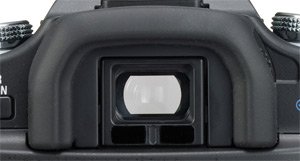
The A100 has an average size penta-mirror viewfinder with a bright and clear view. The eyecup is large and also surrounds the previously mentioned eye-start sensor. The eye-start sensor ensures that there is no bothersome LCD glare when looking through the viewfinder. This is one feature that is hard to live without once you get used to it! Unfortunately, there is only one other current DSLR which implements this feature, Canon's Digital Rebel XTi
Exposure parameters are changed using the control-wheel. In P mode, the control-wheel selects between equivalent aperture and shutter-speed combinations. In A, S and M modes, the control-wheel changes a single exposure parameter. In M mode, the other parameter is changed by turning the control-wheel in conjunction with the EC button. In all other modes, this combination is used to apply exposure-compensation. The AEL button can also be used to modify aperture and shutter-speed simultaneously to maintain the set exposure.
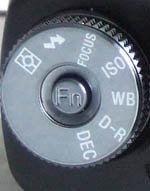 The control-wheel is also used with the function-dial (Fn) to change image parameters. The Fn-dial is a great way to control many parameters without having to enter the menu system or overloading the camera with buttons. It works by rotating the dial to the desired parameter and then turning the control-wheel while pressing the Fn-dial's center button. The Fn-dial controls meteringMulti-segment, center-weighed or spot, flash-modeAuto, Fill, Rear-Sync, or Wireless, flash-compensation-2..+2 EV, 1/3 EV inc., focus-areaWide, Center, Selected, focus-modeSingle-shot, DMF, Automatic, Continuous, ISOAuto, 100, 200, 400, 800, 1600, Lo80, Hi200Wide, Center, Selected, white-balanceAuto, Preset, Kelvin, Custom, white-balance presetDay, Shade, Cloudy, Tungsten, Fluorescent, Flash, DROOff, Standard, Advanced and DECColor mode, contrast, saturation, sharpness. Some parameters on the Fn-dial require the use of the 4-way controller to select between groups of sub-parameters. For example, the DEC parameter is split between color-mode and three image-parameters. Switching between the four requires using the 4-way controller. While the ISO setting is being changed, its value appears in the viewfinder status bar. It would have been better if it could be changed completely while looking through the viewfinder by providing a dedicated button.
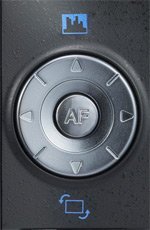 Like all modern DSLR cameras, the A100 has a dedicated playback button and an image review option. When an image appears for review, it can be immediately deleted, zoomed-in or have its luminance histogram displayed. All the same options are available in playback mode as well. During image playback, the control-wheel can also be used to iterate through images without changing the zoom or display options. This is an effective way to compare the same area across a series of shots. The A100 offers two ways to zoom into an image. First, there is the traditional way which is operated by directly changing the zoom factor and scrolling around the image. Second, there is an area-navigation way which works by moving and resizing a selection rectangle over the image. When the selection rectangle is in the desired position, the LCD can be made to see only the selected area by pressing a button. This approach allows zooming into a specific feature more rapidly than the traditional way.
There are three options for the LCD (which serves as a status display in shooting mode): off, simple and detailed. Obviously, when off the display shows nothing. The simple display shows basic shooting information using a very large font. The detailed display uses a medium font to display more information including modified image parameters. A display button to the left of the LCD iterates through all three modes. Our impression is that photographers will either be interested in the simple mode or the detailed mode, but rarely both since the latter is a superset of the former. For that reason it would be better if the display button was simply an on/off switch and the simple or detailed view could be chosen via a setup-menu option. Presently , when switching between the status display and having the LCD off, the user is required to press the button an extra time to bypass the undesired mode.
The Alpha stores images in sequentially numbered folders. Each folder can contain 9,999 images but a new folder, numbered sequentially after the last one, can be created at any time using the setup-menu. When playing back images, the display button optionally allows to navigate between folders.
 |


|

 Next1 - Capability2 - Usability3 - Performance
Please Support Neocamera
All information on Neocamera is provided free of charge yet running this website is a huge endeavor. Purchases made via affiliate links found throughout the site help keep it running and up-to-date. There is no additional cost to you, so please consider buying via these links to our affilates:




Thank you for your support!


Sony A100 Highlights


 SLR digital camera
Sensor-Size: 24 x 16mm

Actual size when viewed at 100 DPI
| 10 Megapixels DSLR | ISO 80-1600 |
| Sony A Mount 1.5X FLM | Shutter 1/4000-30s |
| 2-Axis Built-in Stabilization | Full manual controls, including Manual Focus |
| 95% Coverage Medium Viewfinder | Custom white-balance with 1 axis fine-tuning |
| Automatic Eye-Start sensor | Spot-Metering |
| Built-in Dust Reduction | Hot-Shoe |
| 3 FPS Drive, Unlimited Images | Lithium-Ion Battery |
| 2.5" LCD 230K Pixels | Compact Flash |
Camera Bag


Your camera bag is empty. To add a camera or lens click on the star next to its name.
Your camera bag is empty.
Add cameras or lenses by clicking on the star next to their name.
Updates
2026.05.21

Laowa 4.5-10mm F/2.8 Fisheye Zoom Lens Review
In-depth review of the Venus Optics Laowa 4.5-10mm F/2.8 Fisheye Zoom Lens. This lens zooms from a circular to rectangular fisheye with an 180° viewing angle. This review analyses its optical quality, construction and handling.
2026.04.13

Laowa 17mm F/4 Zero-D Shift Review
In-Depth review of the Venus Optics Laowa 17mm F/4 Zero-D Shift Lens. This ultra-wide Shift lens is specifically designed for Mirrorless Digital Cameras and is available in 4 Full-Frame mounts plus 2 Medium-Format ones.
2025.11.13

Best Gifts for Photographers in 2025 by Budget
The annual Neocamera Photography Gift Guide updated to 2025. Find great gifts for photographers with any price budget.
2025.07.07

Stellar Photo Recovery Review
Review of Stellar Photo Recovery V12. This Windows and MacOS software can recover photos and videos in a huge number of formats from memory cards, USB drives, SSDs and HHDs.
2025.05.14

Huion Kamvas 13 Gen 3 Review
In-Depth review of the Huion Kamvas 13 Gen 3 Pen Display Tablet for photographers and graphic artists.
2025.01.18

Fujifilm GFX 2025 Lens Roundup
Lens Review roundup of Fujifilm GFX Medium-Format lenses. Quality, performance and handling of the GF20-35mm F/4R WR, GF30mm F/3.5 Tilt-Shift and the GF55mm F/1.7.
2024.11.18

Best 2024 Photography Gifts for Every Budget
Great gifts for photographers and photo enthusiasts selected for every budget among the best products of 2024.
2024.08.07

Eye Protection Tips for Professional Photographers
The four main considerations for professional photographers regarding eyewear.
2024.07.14

Fujifilm X100VI Review
Flagship fixed-lens compact digital camera with a 40 MP sensor and Image-Stabilization, a first for the series. Retro design featuring dual control-dials, plus direct ISO, Shutter-Speed and EC dials. Its hybrid viewfinder can switch between EVF and OVF mode.
2024.05.09

Fujifilm GFX100 II Review
Flagship 102 Megapixels Medium-Format Mirrorless Digital Camera with 8-Stop 5-Axis IBIS, 8 FPS Drive, 8K Video and 400 MP Super-Resolution capture in a weatherproof and freezeproof body with dual control-dials and dual memory-card slots.
2024.04.03

Fujifilm X-T5 Review
Newest Fujifilm flagship boasting a 40 MP APS-C sensor, 5-axis IBIS with 7-stop efficiency, 15 FPS continuous drive, 6.2K Video capture, dual control-dials and dual SDXC UHS-II slots in a sturdy weatherproof and freezeproof body.
2023.11.20

Best Digital Cameras of 2023
Find out which are the Best Digital Cameras of 2023. All the new Mirrorless Digital Cameras from entry-level to high-end professional.
2026.05.21
2026.04.13
2025.11.13
2025.07.07
2025.05.14
2025.01.18
2024.11.18
2024.08.07
2024.07.14
2024.05.09
2024.04.03
2023.11.20